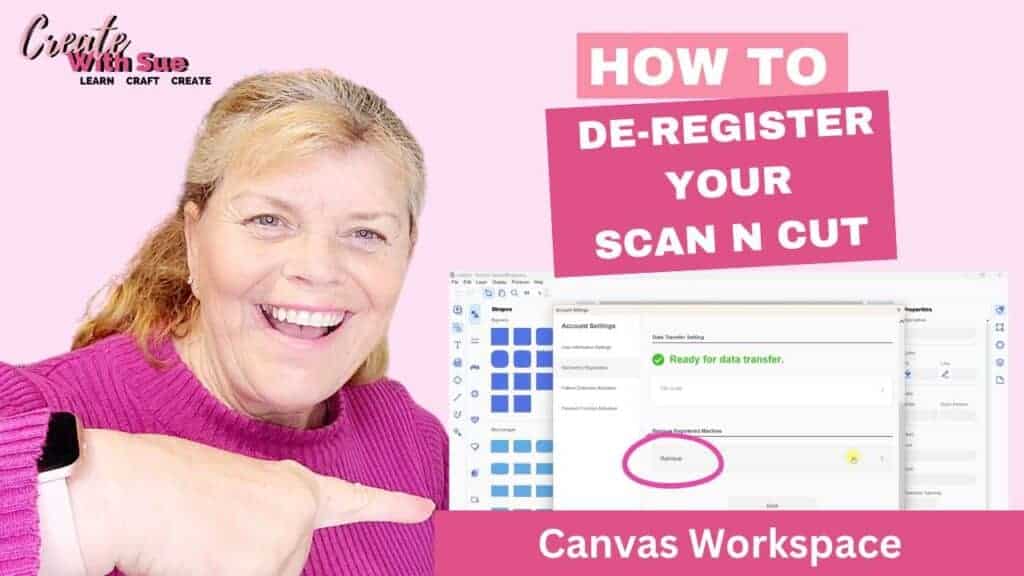
If you’re looking to sell or upgrade your Scan N Cut machine and no longer need it registered, it’s important to de-register the machine to ensure the new owner can register it for themselves. In this step-by-step guide, I’ll show you how to de-register your Scan N Cut using both the downloaded version and the online version of Canvas Workspace.
Why You Need to De-Register Your Scan N Cut
If you’re upgrading your machine but plan to keep your old one, de-registration isn’t necessary, as you can register multiple machines to your account. However, if you’re selling your Scan N Cut machine, it’s essential to de-register it so the new owner can use it without issues.
Video on How To De-Register Your ScanNCut
De-Registering in the Downloaded Version of Canvas Workspace
Let’s start with the downloaded version of Canvas Workspace. This version is my favorite version and is feature-rich. This is the main reason why it is my preferred option.
Here’s how you can de-register your machine:
Open the downloaded / offline version of Canvas Workspace and log into it.
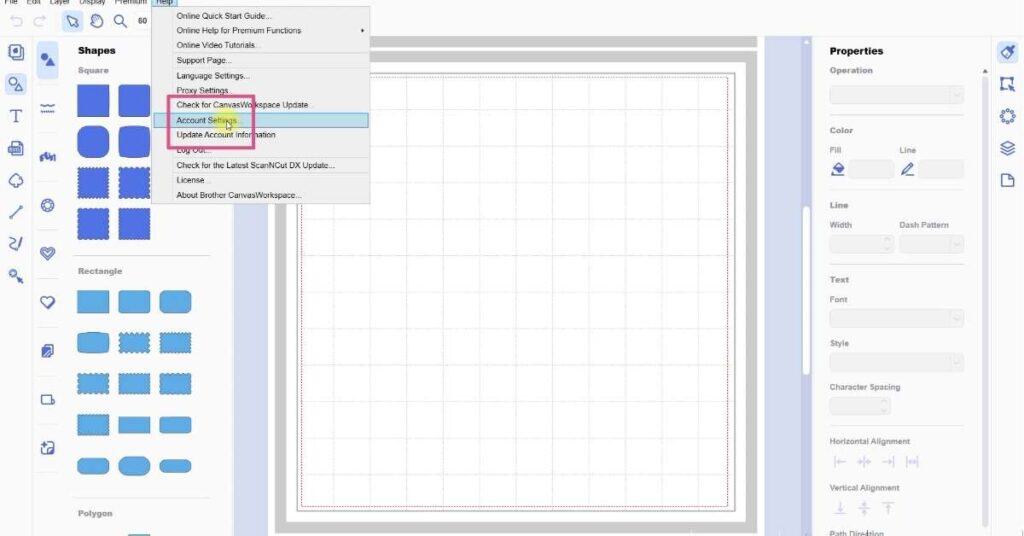
Go up to the top menu and look for Help. Click on that and in the drop-down menu, about half way down you will see Account Settings. Click on Account Settings.
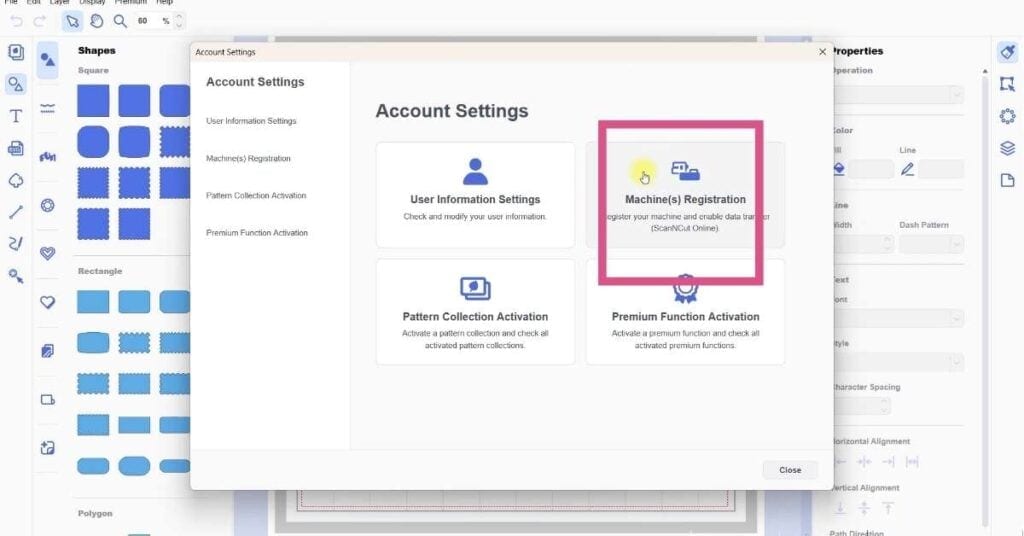
The next screen will be the Account Settings section. In this screen, you will see four boxes. It is in here you can activate Pattern Collections, and purchased Premium Activation Kits. It is also where you can Register and De-Register your Scan N Cut. Click on the Machine Registration box.
Under the Machine Registration section, you’ll see a list of machines currently registered to your account. Scroll down to the Scan N Cut you want to De-Register. If you watch the video below, you will see that I have a few registered, plus my embroidery machine.
Click on the little arrow next to the machine you wish to remove. You’ll see an option to Remove. Select Remove, and the machine will be de-registered from your account.

And you are done!
De-Registering your Scan N Cut – Online Version of Canvas Workspace
If you prefer using the online version or are accessing Canvas Workspace from a tablet (which cannot download the desktop version), here’s how you can de-register a machine:
The steps are almost the same however the Account Settings is located in a slightly different location.
Open the online version of Canvas Workspace. Here is the link if you don’t have it handy. This version works on browser like Chrome, Edge, and Safari. Once you are logged in, click on your name (login name) in the top right corner of the screen.
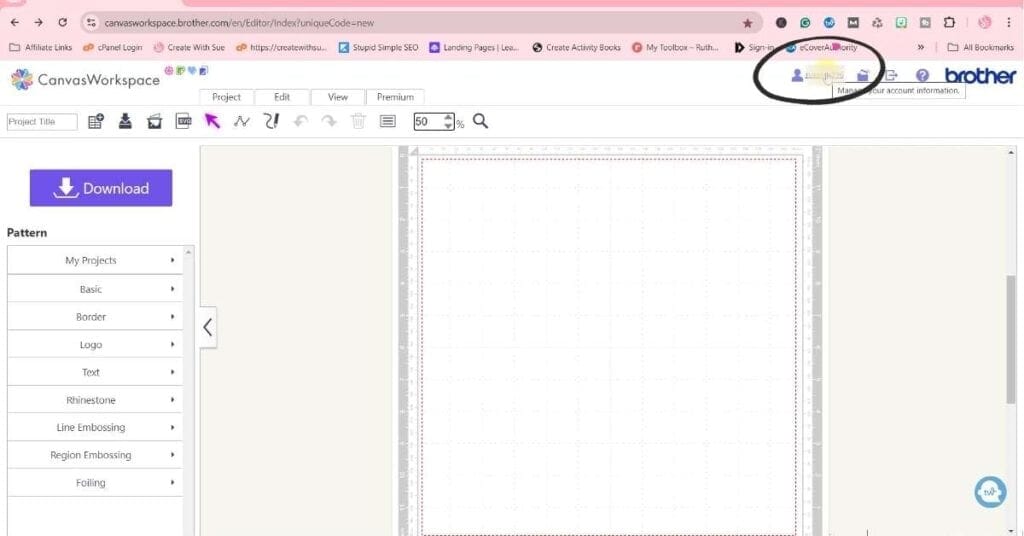
You are in the Account Settings section with the same abilities as described in the downloaded/offline version of Canvas Workspace.

From this next screen, select Machine Registration. Just like the downloaded version, you’ll see your list of registered machines.
Find the machine you want to remove, and select Remove.
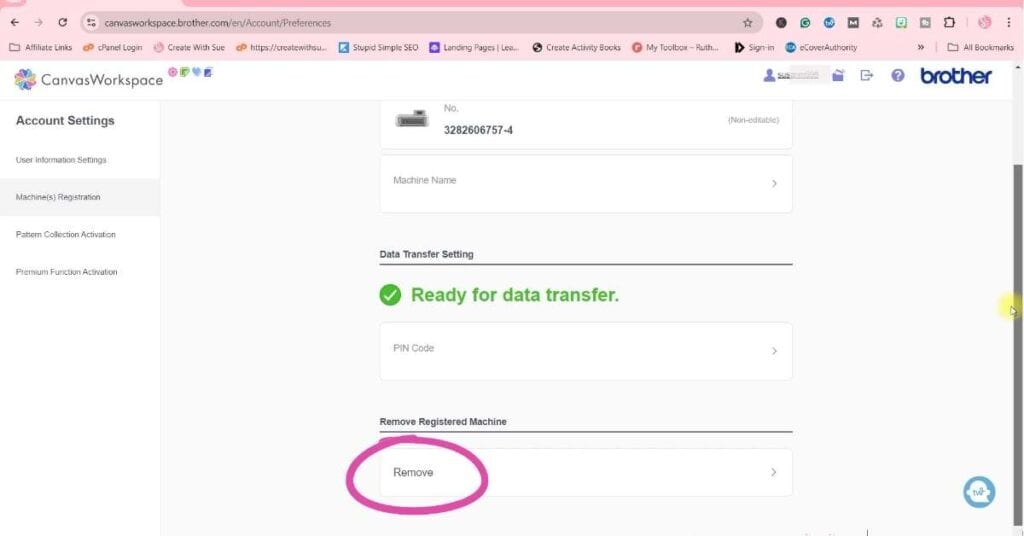
That’s it! The process is almost identical to the downloaded version, and it’s easy to manage your machines, whether you’re using the browser version or desktop version.
Registering a New Machine
While you’re here, it’s good to note that this is also where you can register a new machine. Just follow the same steps in reverse, and instead of removing, select Add to register your new Scan N Cut machine.
Final Thoughts
De-registering your Scan N Cut machine is a simple but crucial step when you’re selling or upgrading. I hope this guide has made the process clear. If you have any further questions, feel free to check out my video tutorial linked here, or leave a comment below!
I hope that you found this tutorial helpful.
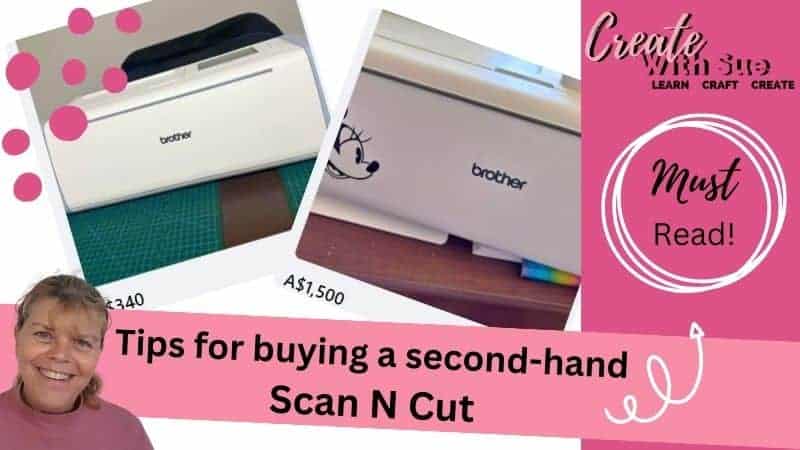
Here is a tutorial on buying a second hand Scan N Cut which will be of interest if you are buying or selling.
Remember to check out my Facebook group Scan N Cut ~ Let’s Create With Sue. There you can share your awesome creations with the group, ask for assistance or simply pick up some additional tips and tricks. I would LOVE to see you there.
Happy creating,