Have you taken a look at Sure Cuts A Lot commonly referred to as SCAL? I really love this software and find it has a few features that aren’t in Canvas Workspace as yet. In this tutorial, I will take you on a quick tour of the toolbars. They are very easy to navigate.
You will find details about the software and also a video tutorial giving you a quick tour of the toolbars below. Note that SCAL 5 and SCAL 6 have a similar interface and main screen toolbars.
Video Tutorial – Quick Tour of the Toolbars in SCAL
Welcome to our Quick Tour of Sure Cuts A Lot (SCAL) 5 video! In this video, we’ll walk you through the essential features and layout of SCAL5, helping you get familiar with the main workspace, tools, and functions that make this software a go-to for designing with cutting machines. Whether you’re new to SCAL or need a refresher, this quick tour covers everything you need to get started, from importing SVG files to creating new shapes and using the alignment tools.
Disclaimer: As an Amazon Associate, I earn from qualifying purchases. Links included in this tutorial may be affiliate links, Amazon or others, meaning I may earn a small commission at no additional cost. These commissions will help me continue creating content for you. Thank you for your support! Read my very boring full disclosure policy here.
Where to buy
One of the first things you might ask is where on earth do you purchase Sure Cuts A Lot from? Then, which version do I need?
The first question is easy to answer. Here is my link to the software which takes you directly to the website. SCAL is a low cost software program and well worth the money.
OK, let’s tackle which version next. On the website, you will see SCAL 6 and SCAL 6 PRO, the latest versions of Sure Cuts A Lot. Is there much difference to SCAL 5? Generally no, it looks very much the same however, there are some super cool additional features. I have both SCAL 5 and SCAL 6.
My recommendation is to purchase SCAL 6 over SCAL 5 for the added features the new version includes. Now, do you need PRO? I haven’t worried about purchasing the PRO version of Sure Cuts A Lot as the base version is very feature-rich.
Pro Features
- Extended cutting length to cut longer than 72 inches
Tiling
Duplicate cutting
Cut by color
Print & Cut (Contour Cutting)*
Options to control the cut order
I must admit the PRO features for SCAL 6 are fairly tempting however I am not sure they are needed. For example, if you have the Scan N Cut roll feeder then you can already cut and set up designs longer than 24 inches in Canvas Workspace.
The Brother Vinyl Blade Kit for the SDX models adds the Tiling feature to Canvas Workspace. You see where I am going with this….for me. However, this may not be the same for you! The final decision should be based on your preferences and needs.
Sure Cuts A Lot video tutorial
I have created a short video to cover the Sure Cuts A Lot toolbars and will also provide written information in the post. I hope that you enjoy both 🙂
Opening Sure Cuts A Lot (SCAL5)
When you first open Sure Cuts A Lot 5 (SCAL5), the interface might look complex, but it’s designed to help you get started quickly on your cutting projects. Whether you’re using it with a cutting machine like Brother Scan N Cut, Cricut, or Silhouette, this software makes project setup easy. Follow these steps to launch SCAL and prepare for your crafting journey.
When you install SCAL it will place a blue colored dot icon on your desktop with a pair of scissors and a number inside. The number denotes the version of SCAL you are opening. For example, SCAL5 will have the number 5, and SCAL 6 will have the number 6 inside the icon. Earlier versions, of course, will have their number.
I have both SCAL 5 and SCAL 6 installed and this makes it very easy to distinguish which version I am opening.
The Cutter’s Market
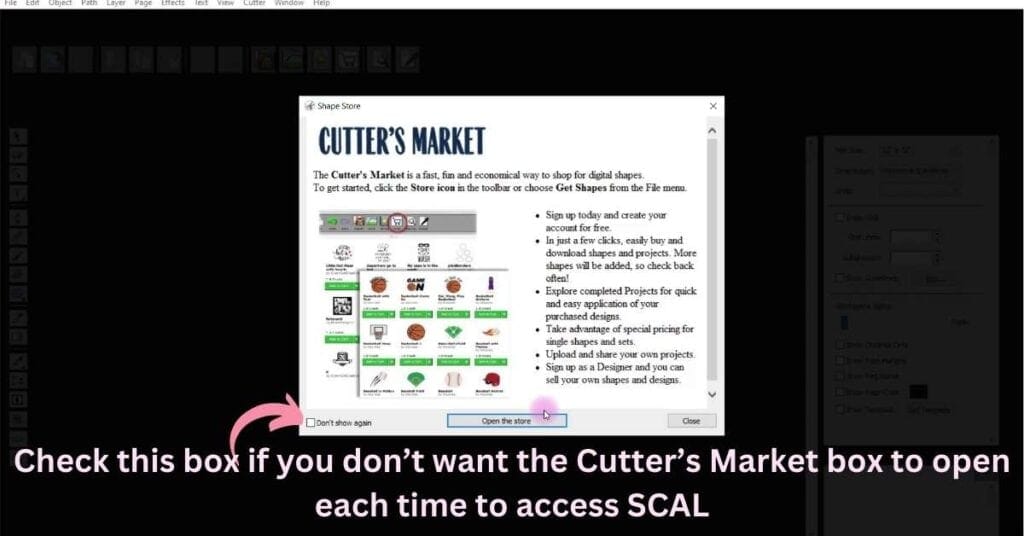
The Sure Cuts A Lot Cutters Market is the first screen that usually opens. It contains designs you can purchase and build upon in your software. I like to design my own so rarely even look in the market however you may find you like it. It is worth taking a look through and deciding for yourself.
There is a check box on the bottom left of the pop-up box where you can prevent this box from loading. Your choice.
Choosing your recent project
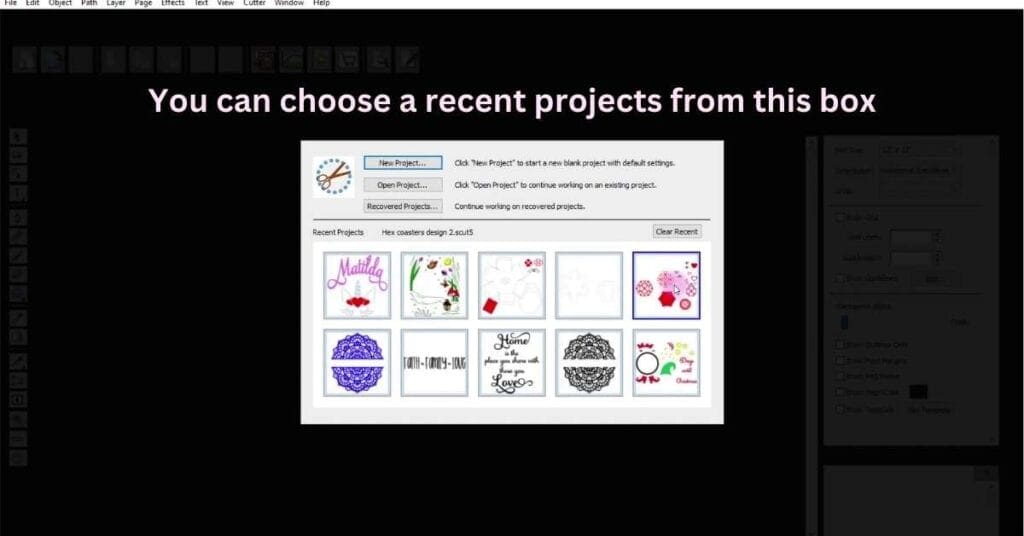
SCAL makes it easy to jump back into recent projects. The pictured screen is your entrance into the software and provides a couple of options, including opening a new project, opening an existing project, or as the screen below shows, opening a recent project. This selection box even shows you a picture view of your last ten projects. How cool is that!
You will also find the option to open the Recent Projects File menu, where you will find a quick list of your previously saved files, allowing you to continue where you left off without needing to search through your saved files. This feature is a time-saver for busy crafters!
Creating a new project in SCAL 5
Starting a new project in Sure Cuts A Lot 5 is simple. By clicking on “New Project,” you can begin crafting from scratch, setting your canvas size and choosing your desired cutting machine. This section covers the step-by-step process for setting up a new design, from canvas dimensions to machine settings, helping you start your project the right way.
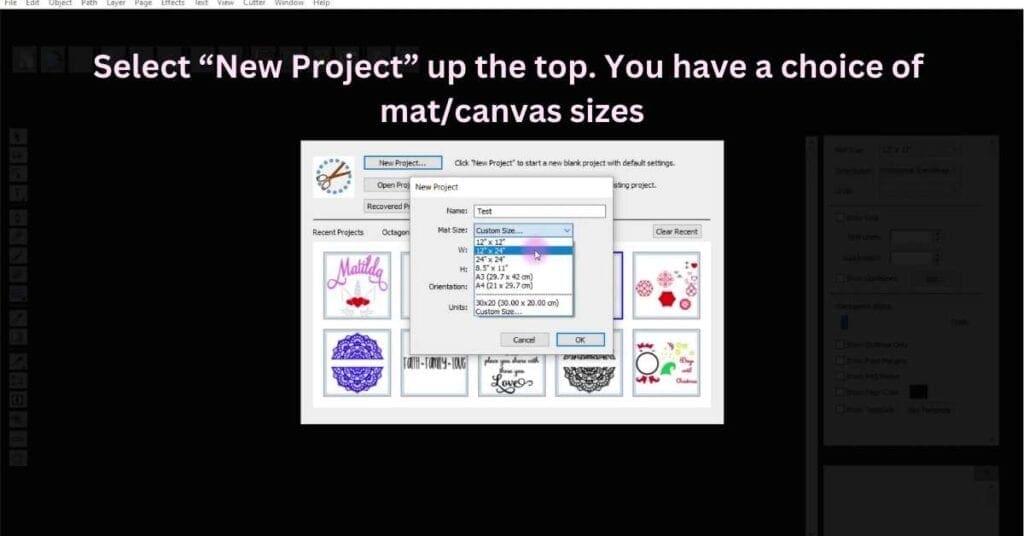
Tools in the File Menu of Sure Cuts A Lot
The File Menu in SCAL5 contains essential tools for managing your projects, such as opening, saving, importing, and exporting files. It’s where you can save your project in various formats, import SVG files, or export your design for different cutting machines.
As you can see in the picture below, the Scan N Cut is featured and SCAL works really well with FCM files. It will export in SVG or FCM for you. Plus, contrary to some of the other software programs on the market, it will create your exported design the correct size for the Scan N Cut….exactly how you designed it. I have used quite a few software programs that you need to tweak the design to get it correct once you import it into Canvas Workspace or your Scan N Cut.
Another bonus is that it has the option to select the file setting to be suitable for use with a Cricut during the export process. This is a handy feature if you have a Cricut cutting machine as well. Not so much if you don’t… in that case, just ignore that setting.
This software will export in PNG, JPG, BMP, PDF, TIFF, FCM, SVG, and possibly other formats that suit the machine you set up. I have another tutorial on setting your machine up.

You will also notice it has a Trace feature. Now, I love Trace. It is always a fun tool to use and offers a quick way to create designs. Big tick!
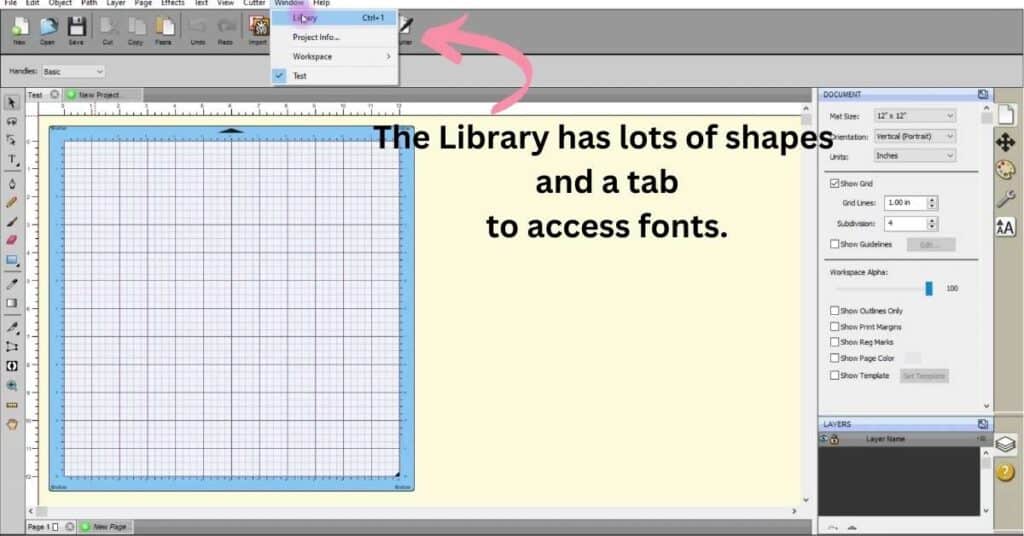
Exploring the Sure Cuts A Lot Library: Your Design Resource
The Sure Cuts A Lot Library is a treasure trove of pre-made shapes, fonts, and templates that make it easy to enhance your designs. This section of the software allows you to drag and drop ready-made elements directly into your project, saving you time and effort.
It also has an additional tab for you to access your fonts. While this at first glance doesn’t sound that exciting as you can access your installed computer fonts from the main screen as well, I think it is very exciting. The great thing about the fonts tab is it also accesses the Glyphs and Flourishes of your installed fonts if they come with them. SO much easier than any other method that I have used. I absolutely love it.
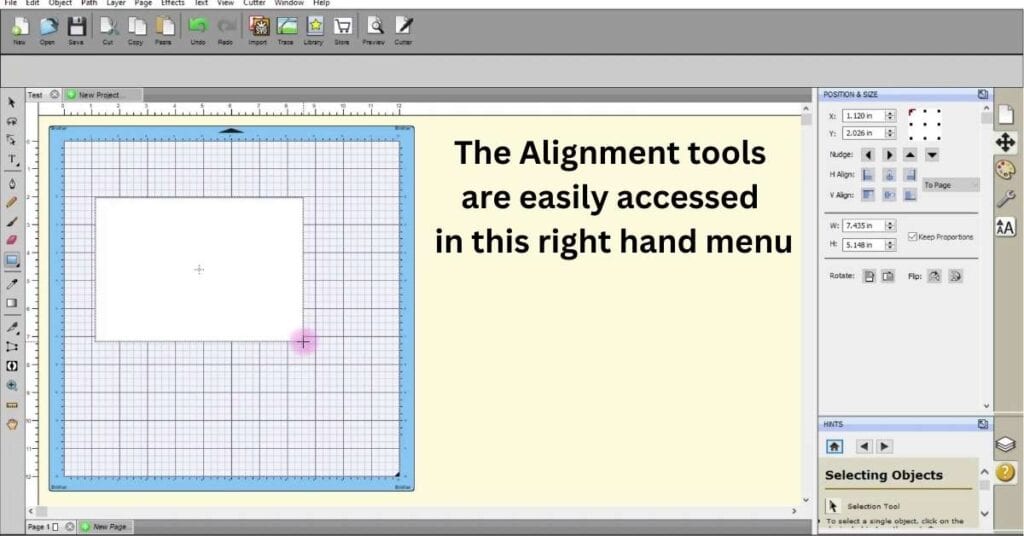
The Alignment Tools in Sure Cuts A Lot
Alignment is critical when it comes to crafting precision designs. SCAL offers powerful Alignment Tools to ensure your shapes, text, and elements are perfectly aligned, whether you’re centering, aligning to the top, bottom, or sides.
You can find the alignment tools in the Position and Size toolbar located in the right-hand menu. A special feature of the right-hand menus is that they can either ‘float’ or be locked in place. To float a menu, simply click the small arrow icon in the top right corner of the section you want to float. To lock it back in place, click the icon in the same spot.
In this area, you will also see “Nudge”. This does exactly what the name says, it nudges shapes the tiniest amount at a time. Great for getting your design precisely where you want it. I use the Nudge tools a lot as they are more refined that using the keyboard arrow keys.
Your resizing tools and flip tools are located in the Position and Size toolbar too.
Understanding the Edit Menu in SCAL5
The Edit Menu contains some of the most frequently used tools in SCAL5, such as undo, redo, copy, paste, and delete. There are also shortcut keys for these features. I use Ctrl + C for copy, Ctrl + V for paste. Ctrl + X for cut and Ctrl + Z for undo. So quick! If you are on a Mac, replace Ctrl with Cmd.
Note: Ctrl + the letter means hold the control key on your keyboard down and then select the appropriate letter to execute the command.
Using the Layers Panel in Sure Cuts A Lot 5
The Layers Panel is a crucial part of SCAL5 and 6. In fact, it is crucial in any good design software. It allows you to manage different parts of your design separately. You can organize, hide, lock, and manage individual layers, giving you complete control over your project. The Layers panel can also be locked into place in the right-hand side menu or to be floating.
Saving and Exporting Projects in SCAL5
Once your project is complete, saving and exporting it in the correct format is very easy. Sure Cuts A Lot supports various file types, including SVG, PDF, and FCM files, which are compatible with different cutting machines and your printer. If you select Save or Save As the software will save in the Sure Cuts A Lot Project type. If you are used to the downloaded version of Canvas Workspace, this works very much the same as the CWPRJ design file type.
Like Canvas Workspace, you select Import or Export to open or save a file in a usable format for your cutting machine.
Sure Cuts A Lot is feature-rich – Importing PES
There are so many features that I have not even scratched the surface of them. But before I wrap this tutorial up, I want to mention one more superb feature.
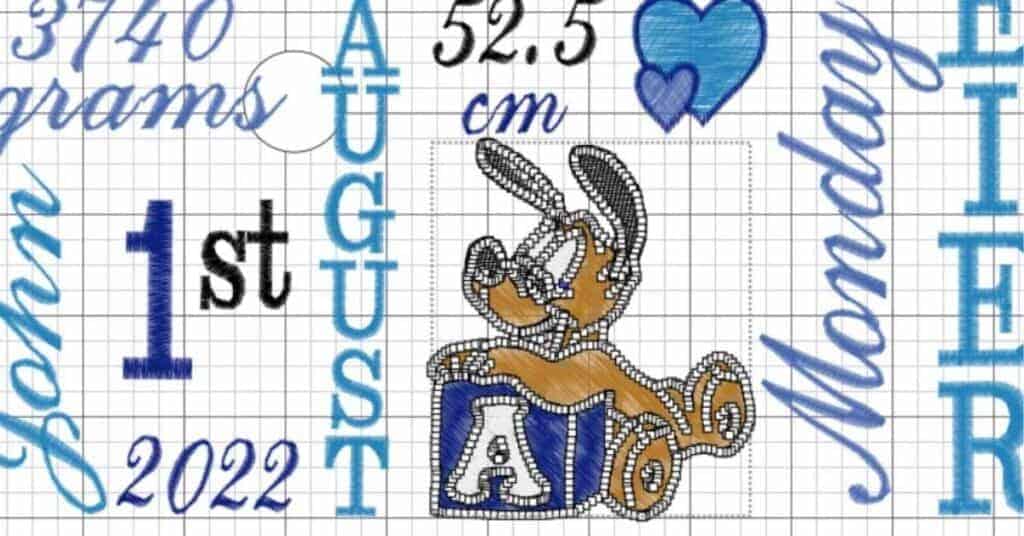
If you are a sewer and like to create embroidery projects, Sure Cuts A Lot will Import PES files where you can create a cut file from some shapes in your embroidery design. Now, isn’t that fun. It presents options to create Applique files to cut with your machine. How well this works will depend on your design, sewing format, and cutting machine. You may need to tweak to get your sizing correct however it is a good start.
Pictured below is an embroidered birth notice design that I have made a variation of for most of my grandchildren. I arrange and change depending on their name and of course, whether they are a boy or girl. This one was for one of my grandsons.
Pictured are the cut file nodes showing on the dog and the letter he is leaning on. All I have done here is imported the PES embroidery design into Sure Cuts A Lot.
To cut out nicely, this design will still need editing to remove any excess nodes and cut lines.
Tips for Success:
- Use accurate software: If you’re not using SCAL for extracting appliqué outlines, Embrilliance is highly recommended as it can easily convert appliqué PES files into SVGs.
For embroidery and Applique, I have a few of the Embrilliance modules, PE Design Next, and Simply Applique. Plus I have used several other embroidery software packages over the years. (you may have gathered that I love software). - If I were to make a recommendation, I would recommend Embrilliance for Embroidery and Applique as a first preference for someone who likes to embroider. I like using my PE Design Next software too however it is a little outdated now and doesn’t have some of the features I wanted to use.
- Clean up nodes: PES files sometimes generate extra nodes when converted. Clean up the nodes in SCAL to ensure smooth cutting.
- Test cuts: Always do a test cut on scrap material to ensure the appliqué fits correctly on your embroidery design.
Is Sure Cuts A Lot worth it?
Yes! It definitely is which is why I spent the extra money and purchased SCAL 6 when I already had SCAL 5. The software is excellent for creating SVG and FCM files for your cutting machine. It has more features than Canvas Workspace (which I also love using) and can create unique designs. It is fairly easy to use, especially in comparison to some software I have used.
I also find SCAL useful for editing SVG files that I’ve purchased or downloaded when they’re not exactly how I want them. While Canvas Workspace usually handles basic edits well, there are occasions when a file needs something extra. SCAL has the capability to make those additional adjustments, giving you more flexibility with your designs.
Here is my link to the software which takes you directly to the website.
Join me on Facebook
Join me in the Scan N Cut – Let’s Create With Sue Facebook group. It is a group of awesome craft friends sharing and caring.
I would love to see you there.
I hope that you have found this quick overview of SCAL useful. Please feel free to ask any questions that you need.
Happy creating